

Large image files are a common cause of slow WordPress performance. PageSpeed Insights frequently recommends serving images in next generation formats such as WebP.
Instead of adding another optimization plugin, you can convert images during upload using PHP. This reduces file size at the source, lowers transferred bytes, and improves loading performance without extra overhead.
This guide explains how automatic WebP conversion works, how to implement it using PHP, server requirements, and how to measure real impact.
TL;DR – Jump straight to the code snippet ⬇️
Why WebP improves WordPress performance
WebP was developed by Google to provide smaller file sizes while maintaining visual quality.
According to their official documentation:
- WebP lossless images are about 26 percent smaller than PNG
- WebP lossy images are 25 to 34 percent smaller than comparable JPEG files
WebP is supported by modern browsers including Chrome, Edge, Firefox, and Safari.
For image-heavy pages, especially homepage hero sections and landing pages, switching from PNG or JPG to WebP can significantly reduce total page weight.
How image format affects Core Web Vitals
Reducing image size directly influences:
- Largest Contentful Paint
- Total transferred bytes
- Mobile loading performance
- Bandwidth usage
In one homepage test, replacing large PNG hero images with WebP reduced total page weight by nearly 900 KB without changing hosting, caching, or CDN settings.
No layout changes. No compression adjustments. Only the file format changed.
Each comparison was measured using real landing page assets under controlled conditions to isolate format impact.
On image-heavy landing pages, format changes alone can remove more weight than most caching tweaks.
How PHP converts JPG and PNG to WebP
To convert images during upload, your server must support:
- GD with WebP enabled
- or Imagick with WebP support
The process:
- Load the original JPG or PNG
- Generate a WebP version
- Save the new file inside
/wp-content/uploads/ - Optionally keep the original
If WebP support is not enabled at the server level, PHP cannot generate WebP images.
In most shared hosting environments, GD with WebP support is already available, but it is worth confirming before deployment.
Automatically convert images during upload
You can hook into the WordPress media handling process using the wp_handle_upload filter.
This approach:
- Detects JPG and PNG uploads
- Converts them to WebP using GD
- Prevents filename conflicts
- Skips GIF files to preserve animation
- Optionally deletes the original file
Your media workflow remains unchanged, but new uploads are stored and served as WebP automatically.
PHP code snippet to convert JPG and PNG to WebP
Add this snippet to functions.php or a plugin like Fluent Snippet.
This version:
- Detects JPG and PNG uploads
- Converts them to WebP using GD or Imagik
- Adds a -1 suffix to prevent filename conflicts
- Skips GIF files to preserve animation
- The WebP quality is intentionally set to default to avoid double compression
/**
 * Convert Uploaded Images to WebP Format
 *
 * This snippet converts uploaded images (JPEG & PNG) to WebP format
 * automatically in WordPress. Ideal for use in a theme's functions.php file,
 * or with plugins like Code Snippets or WPCodeBox.
 *
 * @package     WordPress_Custom_Functions
 * @author      Mark Harris
 * @link        www.christchurchwebsolutions.co.uk
 *
 * Modification:
 * - Added a counter to the filename for duplicate uploads and remove .gif
 * - Excludes already uploaded WebP images from conversion.
 * - Checks for duplicate filenames across the entire media library, not just the current folder.
 * - Optimized for performance.
 * - Last modified: 1/1/2026
 *
 * @author      Adit MB
 * @link        https://webdivo.com/
 *
 * Usage Instructions:
 * - Add this snippet to your theme's functions.php file, or add it as a new
 * snippet in Code Snippets or WPCodeBox.
 * - The snippet hooks into WordPress's image upload process and converts
 * uploaded images to the WebP format.
 *
 * Optional Configuration:
 * By default, the original image file is deleted after conversion to WebP.
 * If you prefer to keep the original image file, simply comment out or remove
 * the line '$deleted = unlink($file_path);' (and the following error check)
 * in the wpturbo_handle_upload_convert_to_webp function. (line 110-114)
 * This will preserve the original uploaded image file alongside the WebP version.
 */

add_filter('wp_handle_upload', 'wpturbo_handle_upload_convert_to_webp');

function wpturbo_handle_upload_convert_to_webp($upload)
{
    // Determine if the uploaded image is a type we can convert (JPG, PNG)
    $is_convertible = in_array($upload['type'], ['image/jpeg', 'image/png'], true);
    // Determine if the uploaded image is already a WebP.
    $is_webp = ($upload['type'] === 'image/webp');

    // If the file type is not a convertible image or a WebP, do nothing.
    if (!$is_convertible && !$is_webp) {
        return $upload;
    }

    // Get file path information.
    $file_path = $upload['file'];
    $file_info = pathinfo($file_path);
    $dirname   = $file_info['dirname'];
    $filename  = $file_info['filename']; // Filename without extension.

    // For convertible types, the target is .webp. For existing WebP, it's the original extension.
    $target_extension = $is_convertible ? '.webp' : '.' . $file_info['extension'];

    // --- Global Duplicate Filename Check ---
    global $wpdb;
    $new_filename_base = $filename;
    $counter = 1;
    $new_filename_with_ext = $new_filename_base . $target_extension;

    // Optimized duplicate check: First check if the original filename exists, then increment
    $base_query = $wpdb->prepare(
        "SELECT meta_value FROM {$wpdb->postmeta} WHERE meta_key = '_wp_attached_file' AND meta_value LIKE %s",
        '%' . $wpdb->esc_like($target_extension)
    );

    // Fetch all existing filenames with target extension to minimize queries
    $existing_files = $wpdb->get_col($base_query);
    $existing_filenames = [];
    foreach ($existing_files as $file) {
        $file_parts = pathinfo($file);
        $existing_filenames[] = $file_parts['basename'];
    }

    // Check for duplicates efficiently
    while (in_array($new_filename_with_ext, $existing_filenames, true)) {
        $new_filename_base = $filename . '-' . $counter;
        $new_filename_with_ext = $new_filename_base . $target_extension;
        $counter++;
    }

    // This is the unique path for our final file.
    $new_file_path = $dirname . '/' . $new_filename_with_ext;

    // --- Handle Conversion for JPG/PNG ---
    if ($is_convertible) {
        // Check if ImageMagick or GD is available.
        if (!extension_loaded('imagick') && !extension_loaded('gd')) {
            return $upload; // Cannot convert, return original.
        }

        $image_editor = wp_get_image_editor($file_path);
        if (is_wp_error($image_editor)) {
            // Log the error for debugging
            error_log('WebP conversion failed: ' . $image_editor->get_error_message());
            return $upload; // Editor error, return original.
        }

        // Attempt to save the image in WebP format to the unique path.
        $saved_image = $image_editor->save($new_file_path, 'image/webp');
        if (!is_wp_error($saved_image) && isset($saved_image['path']) && file_exists($saved_image['path'])) {
            // Success: replace the uploaded image with the WebP image.
            $upload['file'] = $saved_image['path'];
            $upload['url']  = str_replace(basename($upload['url']), basename($saved_image['path']), $upload['url']);
            $upload['type'] = 'image/webp';

            // Optionally remove the original image (with proper error handling).
            $deleted = unlink($file_path);
            if (!$deleted) {
                error_log("Failed to delete original image: {$file_path}");
            }
        }
        // If saving fails, we fall through and return the original $upload array.

    // --- Handle Renaming for duplicate WebP ---
    } elseif ($is_webp) {
        // If the unique path is different from the original path, a duplicate was found.
        if ($new_file_path !== $file_path) {
            // Rename the physical file.
            $renamed = rename($file_path, $new_file_path);
            if ($renamed) {
                // Success: update the upload array with the new path and URL.
                $upload['file'] = $new_file_path;
                $upload['url']  = str_replace(basename($upload['url']), basename($new_file_path), $upload['url']);
            } else {
                error_log("Failed to rename duplicate WebP file: {$file_path} to {$new_file_path}");
                // If rename fails, return original upload
                return $upload;
            }
        }
    }

    return $upload;
}
This snippet only affects new uploads. Existing images are deleted.
But if you want to keep the original:
- Comment out or remove this line in the code:
@unlink( $file_path ); - The file won’t show inside Media Library, but it still stored in
/wp-content/uploads/.
Server requirements for WebP conversion
Before enabling automatic conversion:
- Confirm GD is compiled with WebP support
- Verify your PHP version supports
imagewebp() - Test in a staging environment
If WebP encoding is unavailable, the conversion will not run.
If you delete original JPG or PNG files, ensure reliable backups are in place.
Real file size comparison
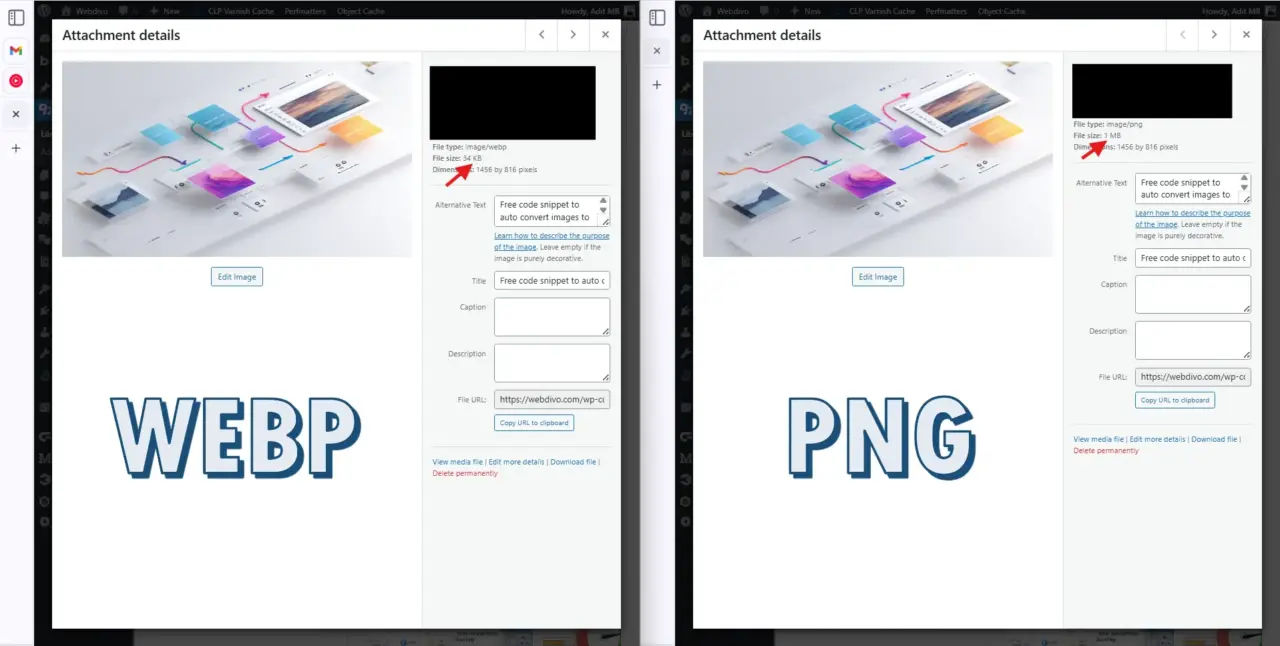
Flat PNG example
Original PNG: 1 MB
Converted WebP: 34 KB
Flat-color images compress aggressively when converting PNG to WebP..
Real-world hero image test
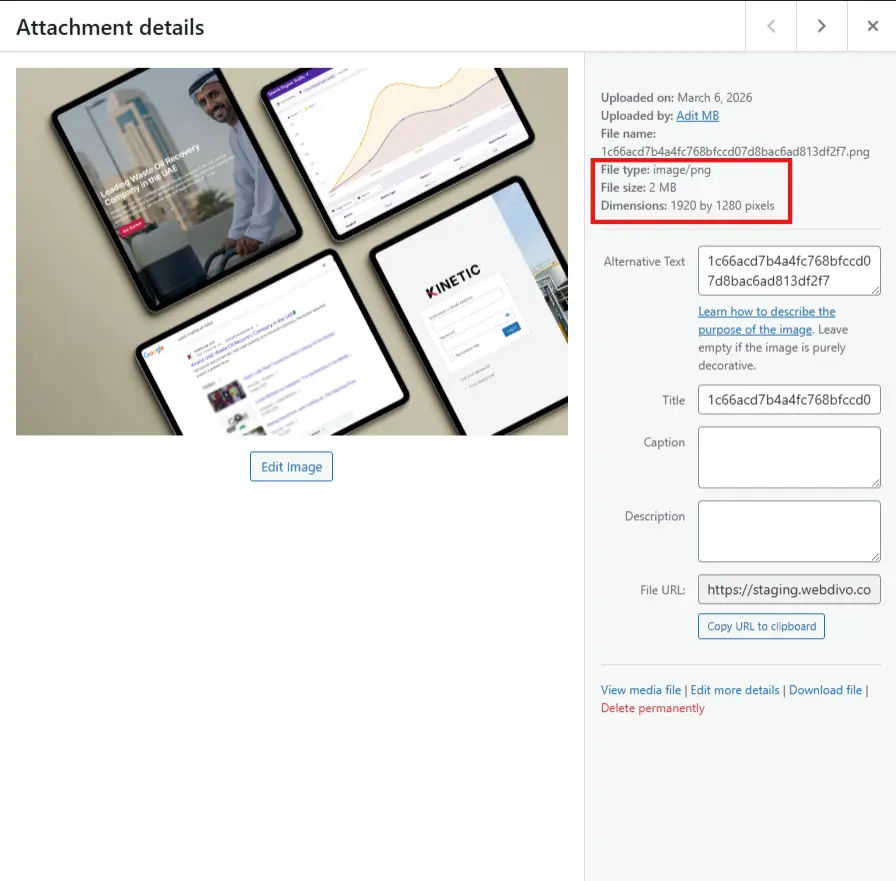
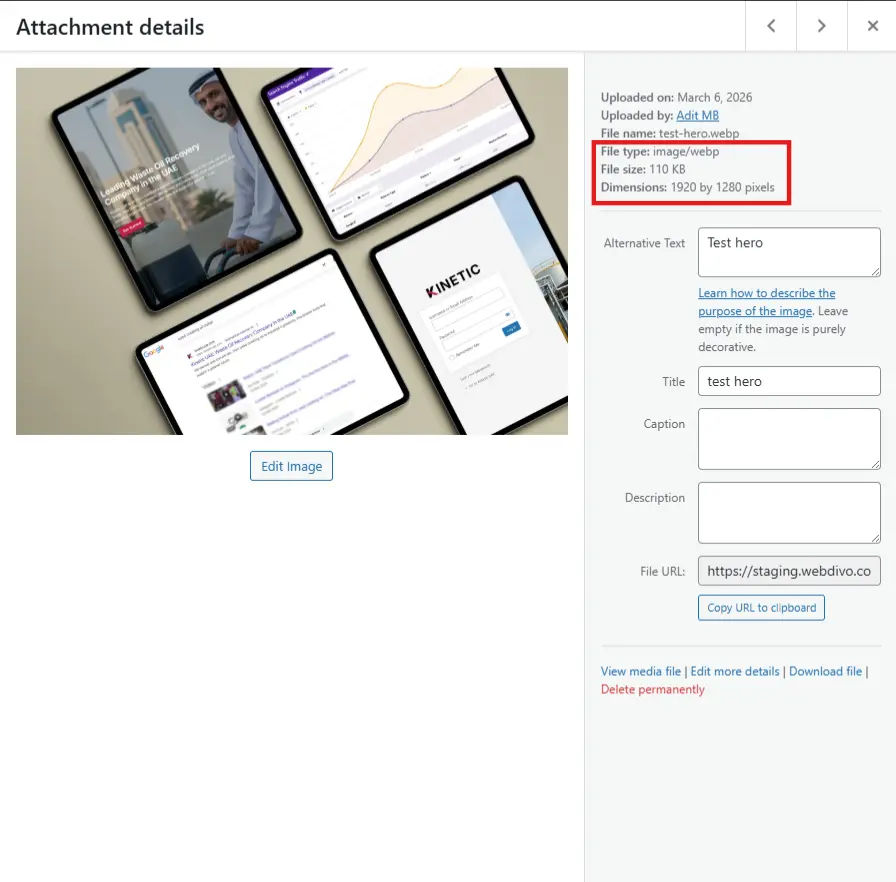
To simulate a realistic scenario, I tested a hero mockup previously designed for a landing page.
The file size decreased from 2 MB to 100 KB after converting the image to WebP.
Both images are visually identical. The only variable changed was the file format, from PNG to WebP.
Measuring performance after conversion
After enabling automatic conversion, validate results under consistent conditions.
Use:
- PageSpeed Insights
- Lighthouse
- Chrome Network tab
Evaluate:
- Largest Contentful Paint
- Speed Index
- Total Blocking Time
Test setup
- Same homepage layout
- Same VPS with CloudPanel
- No CDN enabled
- No caching adjustments
- Only image format changed
Results
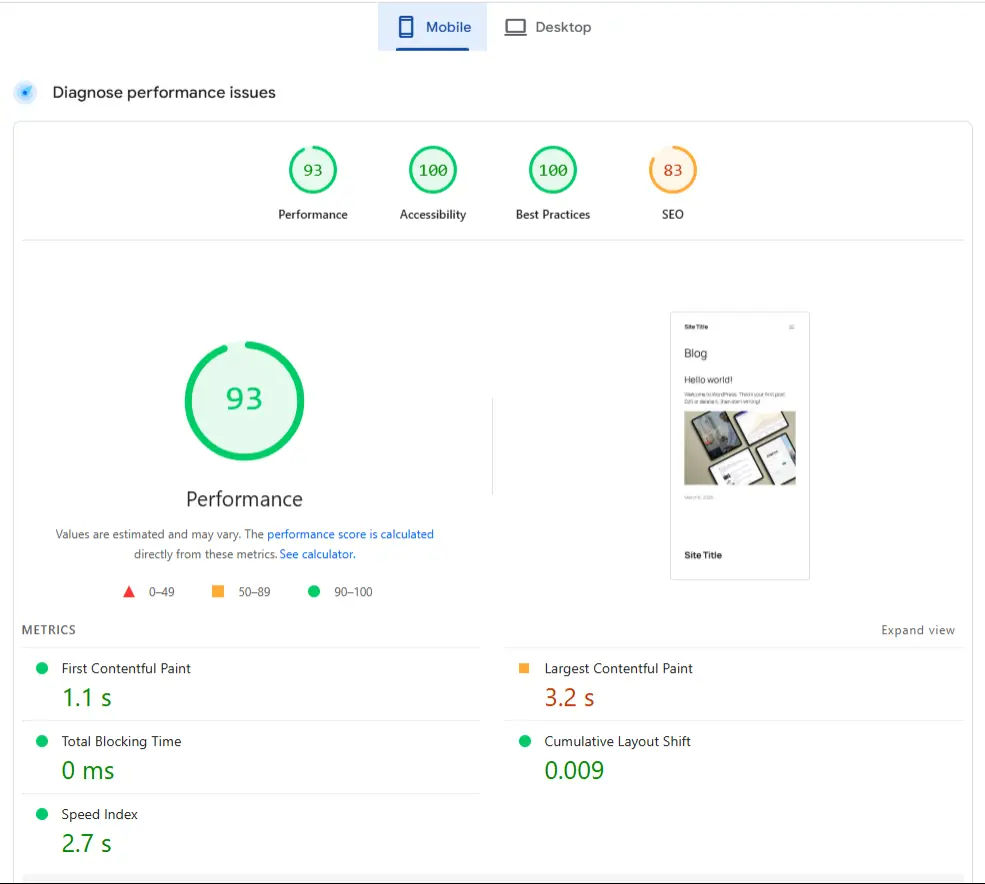
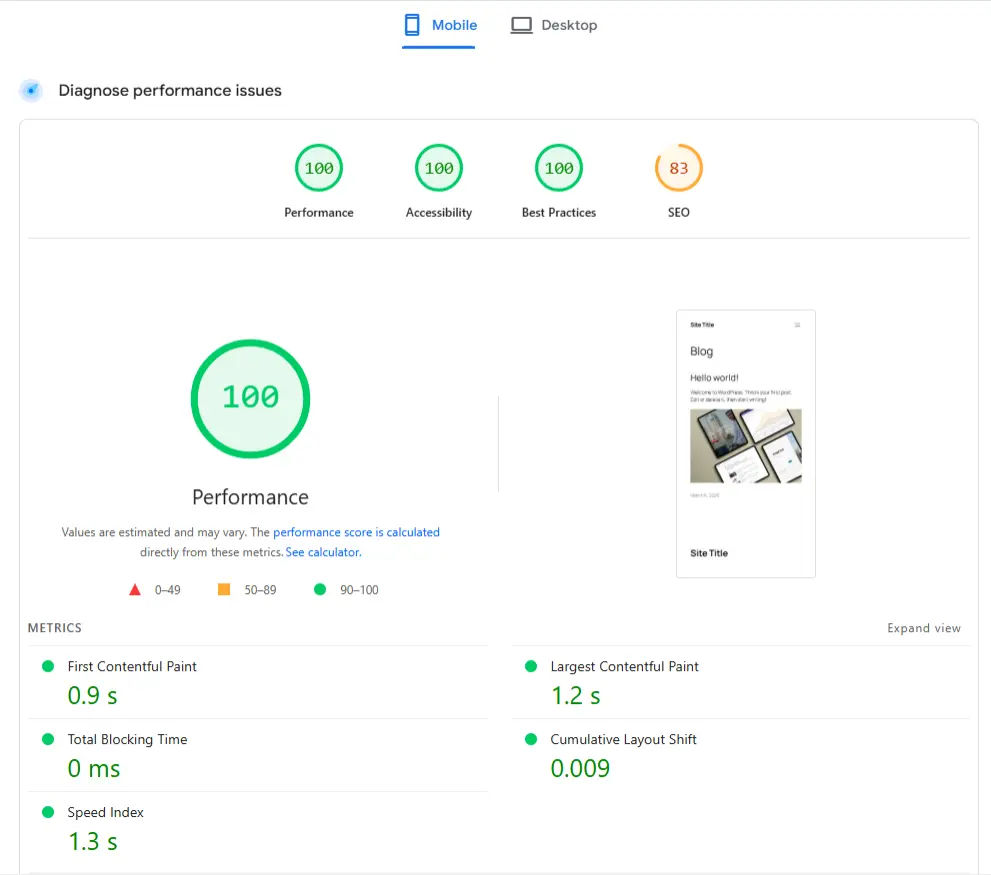
Before conversion, the homepage scored 93 in PageSpeed Insights.
After serving WebP files, the score increased to 100.
In addition:
- Total page weight decreased
- Hero image loaded faster
- Bandwidth usage dropped
Reducing transferred bytes improved performance without infrastructure changes.re remained unchanged, reducing transferred bytes improved overall performance.
WebP vs AVIF in WordPress
Both formats provide strong compression, but trade-offs matter.
AVIF
- Smaller files in some cases
- Higher CPU cost during encoding
- Less consistent hosting support
WebP
- Strong compression
- Faster encoding
- Broad compatibility
For automatic upload processing inside WordPress, WebP offers a reliable balance between compression efficiency and server load. For critical above-the-fold assets such as homepage or landing page hero images, manual AVIF conversion can provide additional file size reduction when tested carefully.
Final thoughts
If your WordPress site relies on large images, converting JPG and PNG files to WebP during upload is one of the most practical structural improvements you can implement.
The performance gains in this guide were achieved without changing hosting, caching, or infrastructure. Only the image format was modified.
When handled at upload level, file size reduction becomes automatic and consistent across your site.
Confirm server support, test in staging, measure the results, and deploy once validated.
Frequently asked questions
Modern WordPress versions allow WebP uploads. Automatic conversion of JPG and PNG depends on server configuration.
Yes. When GD is properly configured, alpha transparency is preserved.
Use the PHP snippet above to convert images to WebP automatically when they are uploaded.
Deleting originals saves disk space. Keeping them allows fallback or future reprocessing. Decide based on your workflow and backup strategy.